For instructors and program staff
This guide covers the program side: setting Clinvero up, running it day to day, teaching students to use it, and getting the accreditation report out of it.
Roles and who sees what
There are four roles.
- Program director and clinical coordinator are administrators. They see everything, including the accreditation report, outcomes, the evidence library, imports and billing.
- Clinical instructor is staff. They see students, rotations, sign-offs and the review queue, but not billing, outcomes or the evidence library.
- Student sees only their own record.
Everything is enforced in the database, not just hidden in the interface. A student cannot read another student's record even if they go looking.
As a clinical instructor, your day-to-day pages are Sign-offs, Review, Rotations and Students. Program settings, billing and imports belong to your director or clinical coordinator — ask them at your program's office.
Inviting staff
Nobody joins your program without an invitation or a join link — there is no public sign-up. Staff join by personal invitation from People.
- Open People and find Invite staff.
- Enter their email and pick a role, then press Send invite.
- Until Clinvero can send email, press Copy link and send it to them yourself. The link is for that one email address and works for 7 days.
They set their name and password from the link and land on their own getting-started checklist. Resend issues a fresh link (the old one stops working); Revoke cancels it. Expired and revoked links tell the person plainly what happened.
Directors can invite anyone. Clinical coordinators can invite clinical instructors. Only a director can make someone a director or change a director's role. Every invite, acceptance, revoke and role change is kept in the audit log.
Student join links
Students join through a cohort join link — one link for the whole class, as a URL or a QR code. Directors, coordinators and clinical instructors can all make one.
- Open People, then the cohort under Student join links.
- Press Make a join link. Choose how many days it works (30 by default) and, if you like, a maximum number of uses.
- Copy link for an email or your LMS, Download QR for a slide, or Print slide for a full-page QR code to show the class.
Students scan it, create an account and confirm their email. Anyone whose email is on your student email domains (set on the Program page) is in straight away. Everyone else waits for approval — see below. A link that has expired, been turned off or used up shows "This link isn't active" and nothing more.
Regenerate makes a new link and kills the old one — use it if a link ends up somewhere it shouldn't. Turn off stops it without a replacement.
Prefer a list? Invite by list on the cohort page takes first name, last name and email (pasted or as a CSV) and sends each student a personal invitation. Those students are active as soon as they accept — no approval needed.
Approving students
When a student joins with an email outside your school's domains, they wait on People → Waiting for approval. The number shows next to People in the menu, and staff get a daily summary email once email is set up.
- Approve lets them in and emails them.
- Approve all does the whole list.
- Decline (with an optional reason) keeps them out; they see that their request wasn't approved and to contact the program.
Until they are approved a student can see nothing in your program — not the roster, not the schedule, not anyone's records.
Getting started checklists
Every role has a Getting started checklist. It shows on the home page until it is finished, and Setup in the menu opens it for directors and coordinators. Nothing on it is a box you tick: each step completes on its own once the thing actually exists.
Directors and coordinators share one list for the whole program: program profile, timezone, accreditation dates, cohorts, sites, technologists and headcount, the competency list, a rotation block, inviting an instructor and students, how Clinvero is paid for, and one evidence document. If a coordinator finishes a step, it is finished for the director too.
Clinical instructors sign in, then take four short walkthroughs: sites and technologists, the competency list, the review queue, and sign-offs.
Students sign in, add Clinvero to their phone's home screen, check their rotation, sort out their term if the program is student-paid, and finish the orientation module. The Ready for clinicals column on Students shows where each one is — a tick, or how many steps are done.
A printable copy of all three lists is at Getting started.
Setting up sites, technologists and the competency list
Sites are the clinical locations your students rotate through. Each one has a technologist headcount, which is what capacity warnings are calculated from. Set the headcount on the Program page.
Technologists are the people who supervise students. Any member can add a site or a technologist, and they are shared across the program — students adding the tech they worked with is normal and saves you data entry.
Show me: sites and technologists1 minThe competency list is covered in the next section. If your list already exists somewhere else, import it instead — see Importing records.
Reviewing the ARRT competency list
A new program's list is loaded from the ARRT Radiography Didactic and Clinical Competency Requirements — the version that takes effect on 1 March 2027. It is a starting point, not a rule book. Three things on it are your program's call:
- Mandatory, elective or patient care. ARRT sets a minimum. Your program may require more, so the type can be changed on any row.
- Exams before comp. How many performed exams a student logs before the procedure shows as ready to comp. ARRT asks for one successful demonstration; the practice count before it is your policy. Clinvero starts most procedures at 3.
- Active or not. Deactivate what you do not use. Past records on a deactivated row are kept.
Which ARRT version applies depends on when a student finishes, not on today's date: anyone completing before 1 March 2027 is under the earlier version.
When you have been through it, press I've reviewed it on the setup checklist. Changing the list later is fine; re-loading the template never overwrites your edits.
Clinical instructors can read the list but not change it. If something looks wrong, tell your director.
Cohorts, program length and enrollment dates
A cohort is a class: a name, an enrollment start, and an expected graduation date. Expected graduation matters in two places — outcome reporting, and whether a student is asked to renew their term.
To move a student to another cohort, open Program, find them under Members, pick the new cohort and press Set.
Program length is on the Billing page. A term is 24 months or your published program length, whichever is longer, so a student who progresses normally never pays twice.
Rotation blocks
A rotation block is a date range for a cohort. Inside it you assign each student to a site, an area, days of the week and a shift.
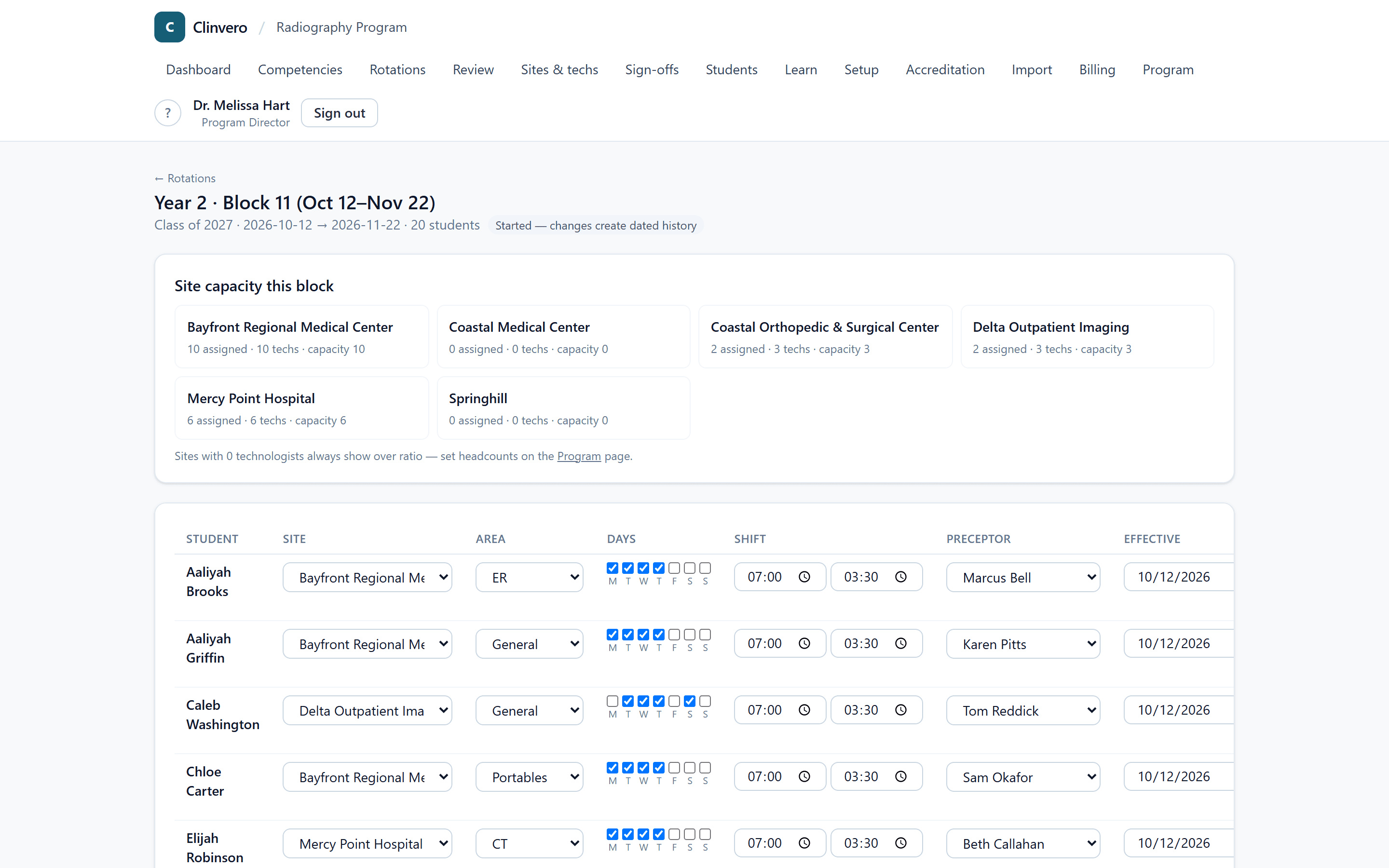
Three things worth knowing:
- Assignments are immutable once the block starts. Reassigning does not edit history: it end-dates the current assignment and creates a successor, so the record shows where the student actually was on any given day.
- Capacity tiles show students assigned against site capacity — the site's technologist headcount times your students-per-technologist policy. Over-ratio sites turn red. Check this before the block starts; that is the whole point.
- The schedule is the record of record. Everything logged is checked against it.
The review queue
When a student logs something that does not match their schedule — wrong site, a day they were not rostered, a start time well outside the shift — it is saved and flagged, never blocked.
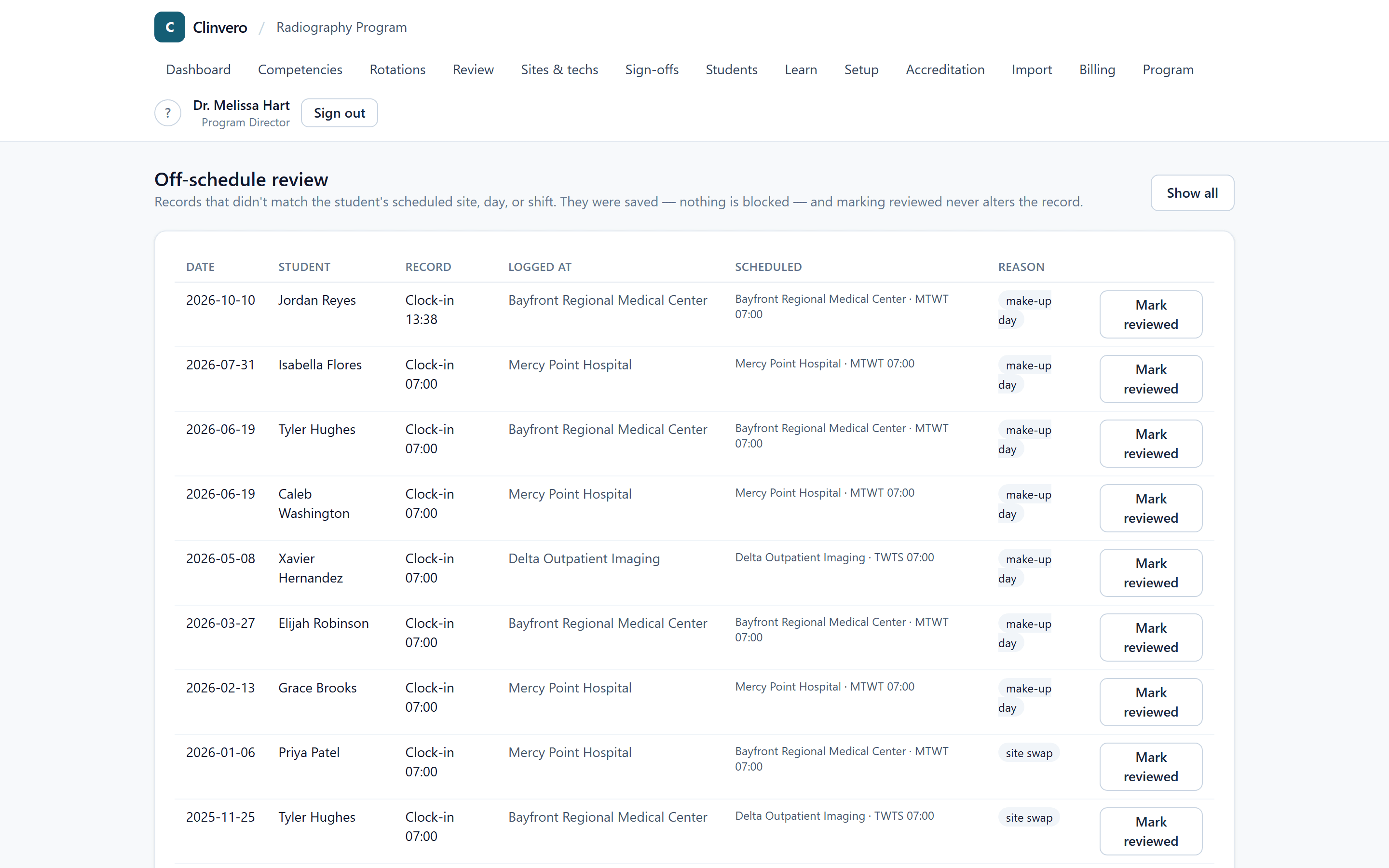
The queue is where you clear those. Read the record, note the reason, mark it reviewed. Marking it reviewed never changes the record itself. An empty queue is the thing a site visitor wants to see: not that nothing went off-plan, but that everything that did was looked at.
Show me: the review queue2 minSign-offs is the other queue: competencies students have submitted. Read what the student recorded, add a note if needed, and press Pass or Fail. If your program grades competencies, Pass opens the rubric first — see the next section.
Show me: sign off a competency1 minGrading competencies
Grading is off until your program turns a rubric on. Until then, Pass records the decision with no score, the way it always has.
What the evaluator does. On a pending sign-off, Pass opens the grading step on the same screen. Each criterion has its own row: tap a score (or Met / Not met), add a note if it helps, and the score at the top updates as you go. Add overall comments, then Submit pass. It stays disabled until every required criterion has a score. If you are recording a technologist's evaluation, tick the box and pick their name, so the grade shows who actually evaluated.
- Below the passing score. If your program allows it, you are asked to confirm, and the pass is saved and flagged as a below-threshold pass. If your program does not allow it, Submit pass is disabled and you are offered Record as Fail instead.
- Critical criteria. A criterion marked critical, scored not met or at its lowest score, can never be a Pass. Any instructor, coordinator or director can change which criteria are critical: Competencies, then Grading rubric, then Critical criteria. On a rubric that has been used, this saves a new version, and earlier grades keep the flags they were scored against.
- Fail always needs a reason. Scoring the rubric on a fail is optional.
Setting up the rubric. Open Competencies, then Grading rubric. Start from a blank rubric or press Start from a starter rubric, which loads a generic radiography sign-off form (eight criteria scored 1–4, passing 85%) for you to change. It is labelled Starter and stays off until you press Use as program rubric. For each criterion set the label, what the evaluator looks for, the scale (points, such as 1–4 or 0–5, or met / not met), a weight, and whether it is required or critical. Then set:
- Passing score — leave it blank for no threshold.
- Do not allow a Pass below the passing score — off: confirm and flag; on: record a fail instead.
- Students see their grades — turning it off hides every grade, old ones included.
Preview as evaluator shows the rubric exactly as it appears after Pass. Once a rubric has been used, changing its criteria or passing score saves a new version; grades already given keep the version they were scored on. If one procedure needs a different form, add a second rubric and pick it for that competency on the Catalog tab.
The gradebook. Grades shows students down the side and competencies across the top, with each student's average and their below-threshold passes. Filter by cohort, site and dates. Below-threshold passes are highlighted. Click a cell for the attempt, the score on each criterion, the comments and any corrections, and use Download CSV for the whole grid. A sign-off from before your program started grading reads No grade (before grading enabled), and it is left out of the averages rather than counted as zero.
Correcting a grade. Grades cannot be edited. On the grade's page, press Correct this grade, rescore it on the same rubric version, and give a reason. The correction becomes the current grade, the original stays on the page marked as replaced, and the change goes in the audit log with who made it. A correction changes the score, not the decision: to undo a pass or a fail, talk to your director.
Teaching with walkthroughs
A walkthrough highlights one control at a time and explains it. In the real program it only points — it never creates, edits or submits anything — so it is safe to run on live records.
- Share a link. Every walkthrough has a link (Learn, then Copy link) you can drop into an email, your LMS or an orientation slide. It opens the walkthrough after the student signs in.
- Present it. Present runs a walkthrough full screen with large text, and the arrow keys move it on. Use it from a projector. Student walkthroughs run on a student account, so present those from the demo's student sign-in.
- Practise for real. In the demo, Try it lets each step be done for real — the walkthrough moves on when the student does the thing. Use the demo for hands-on class practice, never the real program.
- Assign it. Learn, then Assign to a cohort, gives a cohort a module with an optional due date. Clinvero provides two: Clinvero for students: orientation and Clinvero for instructors: getting started. You can also build a tour set — a short module made of walkthroughs you pick.
Completion shows per student on the assignment and on Students. Orientation CSV downloads name, module and completed date — a record your program can keep on file. It is your program's own record; Clinvero does not claim it meets any particular accreditation requirement.
Show me: assign a walkthrough set2 minReports
/app/report assembles the accreditation report from records that already exist.
Nothing is re-entered. The sections are:
- A. Competency status — every student against the active list, with who is behind pace. Once your program grades, it also shows each student's average comp score and their below-threshold passes.
- B. Clinical hours — by student, by site, by week.
- C. Capacity and ratios — by block and site, with over-ratio flagged.
- D. Repeat rates — by student and by site, with direct against indirect supervision.
- E. Outcomes — cohort results against your own benchmarks.
- F. Evidence index — documents on file by Standard, with expiry flags.
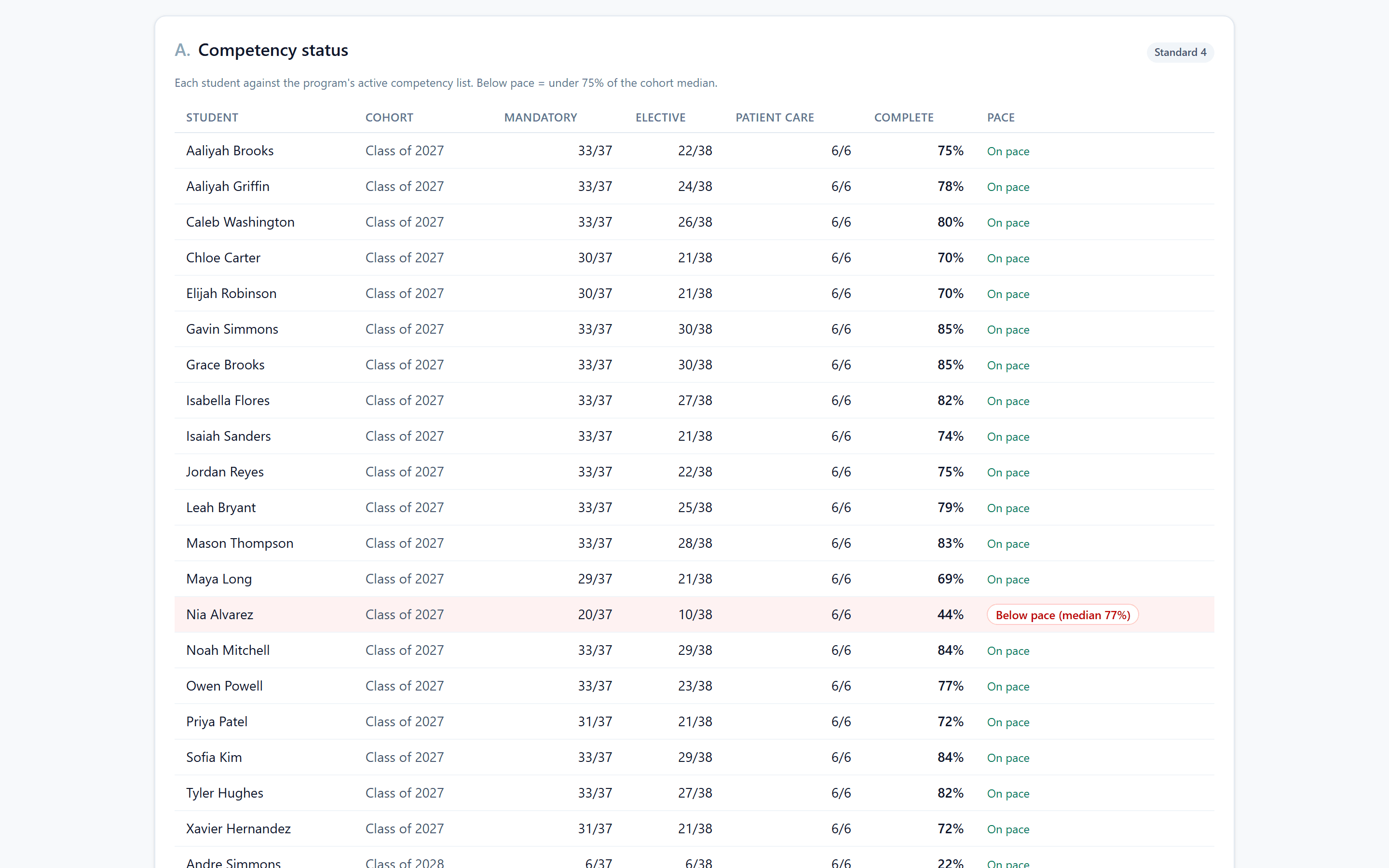
Every number drills to the rows behind it, and every drill exports to CSV. Use Print / save as PDF for the version you hand to a site visitor.
Show me: run the accreditation report3 minOutcomes and the evidence binder
Outcomes (Standard 6) are where you record credentialing exam pass rate, job placement rate and completion rate per cohort, each against the benchmark your program set. When a benchmark is missed, record the action you took. A missed benchmark with a documented action is a program doing its job; a missed benchmark with nothing written down is the finding.
The evidence library holds the documents a site visitor asks for, filed by Standard and objective: clinical affiliation agreements, policies, faculty credentials. Documents with an expiry date are flagged 90 days out. You can export the whole binder as a zip.
Show me: add an evidence document1 minImporting records from another system
/app/import brings your existing records across: roster, competency list,
sign-offs, hours, exam logs. Export CSV or XLSX from whatever you use now.
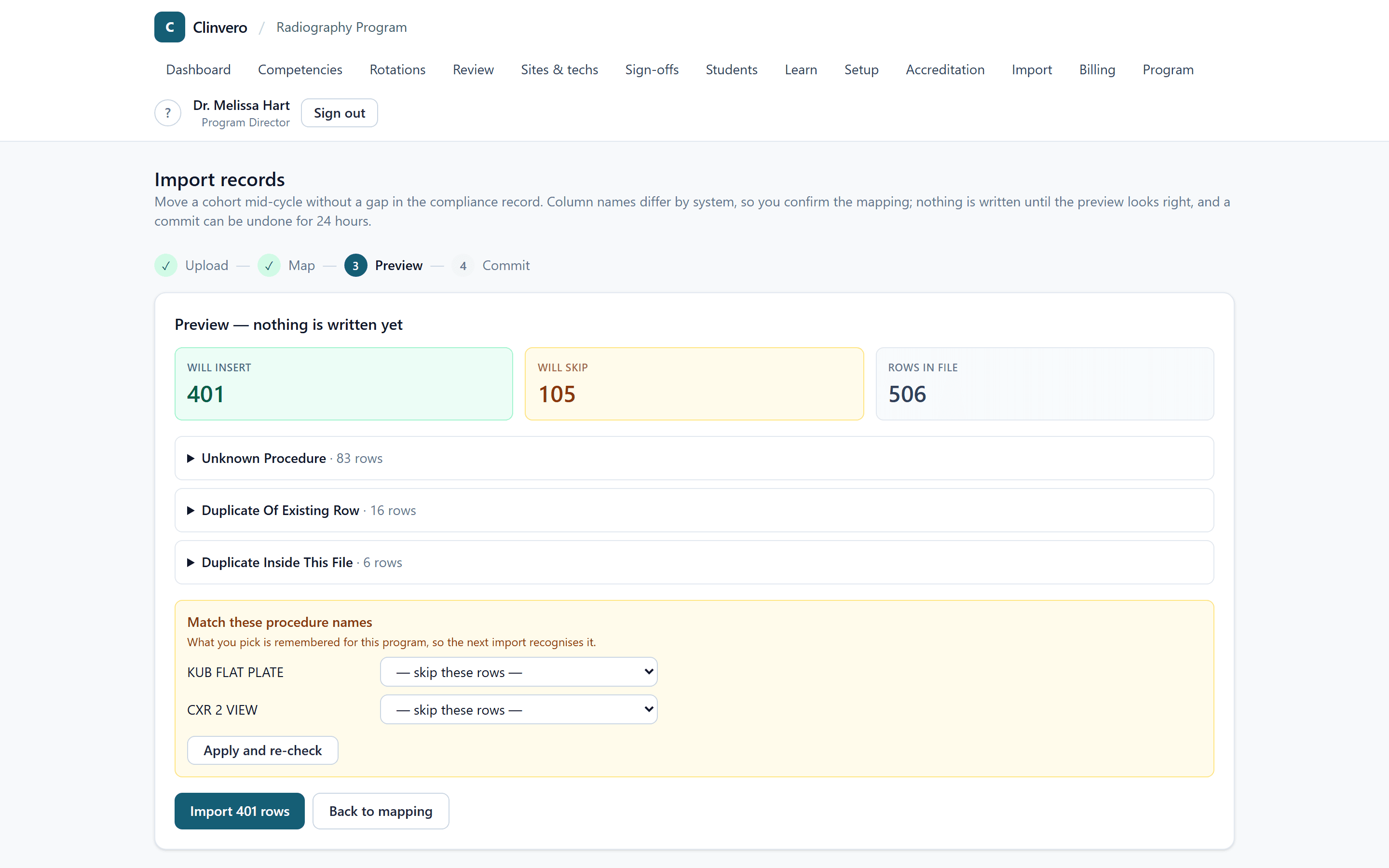
Four steps: upload, map the columns, preview, commit.
- Column names differ by system, so you confirm the mapping. Clinvero pre-fills a guess from the headers it recognises — treat it as a guess.
- The preview counts what will insert and what will be skipped, grouped by reason, and nothing is written until you say so.
- Procedure names that do not match are matched by you once and remembered.
- A commit can be undone for 24 hours.
- Imported rows are marked Imported wherever they appear, and the report says how many came from where.
If you would rather not, email your exports to imports@clinvero.app and we will load them within two business days.
Billing status
Who pays for Clinvero — students, the program, or nobody during a pilot — and the student fee, term length, grace period and what happens after it are set by Clinvero from your agreement. Billing shows them read-only; ask through the help menu to change one.
When students pay, Billing lists them as Paid, Unpaid (with the due date, and a separate list for anyone past it) and Waived.
- Waive a term for financial aid, a transfer, or any reason you record — the reason is required.
- Mark paid records a payment made outside Clinvero — financial aid, the bookstore, a department check. A reason and a reference are both required.
- Both are written to the audit log.
- Payment never blocks signing up, clocking in or logging an exam. After the grace period most programs just keep a reminder banner up. If yours is set to limit access, the student's tracker, history and sign-off requests wait for payment — clinical work still never does.
- Stripe handles the card and sends the receipt. Refunds are issued by Clinvero in Stripe; the term then shows as refunded.
Resetting the demo program
The demo program rebuilds from a seed script (npm run seed:demo) with a full
year of realistic data and a set of deliberate flags — an over-ratio site, a
student behind pace, a missed benchmark — so the report has something to show.
Re-running it wipes and rebuilds that program only.