For students
Clinvero is where you record your clinical work: the shifts you show up for, the exams you take part in, and the competencies your program signs off. This guide is everything you need, in the order you will need it.
Joining your program
Clinvero accounts are created by your program — there is no public sign-up. You join one of two ways:
- A join link or QR code from your instructor, for your whole class.
- A personal invitation sent to your email.
To join with a link:
- Scan the QR code, or open the link.
- Enter your first name, last name, email and a password of at least 10 characters. Use your school email if you have one.
- Open the confirmation email and tap the link. Open it on the same phone or computer you signed up on — if it opens somewhere else, just sign in.
- With a school email you are in straight away. With a personal email (like Gmail) you wait a short while for your instructor to approve you. You'll see a "You're in line" screen until then.
The first time in, Clinvero walks you through a few short steps: agreeing to the terms, your fee if your program is student-paid, a quick profile, and putting Clinvero on your phone's home screen. If you stop half way, it picks up where you left off.
Signing in and your first day
Sign in with your email and password. Forgot it? Use Forgot password? on the sign-in page. You can also ask for a sign-in link by email instead.
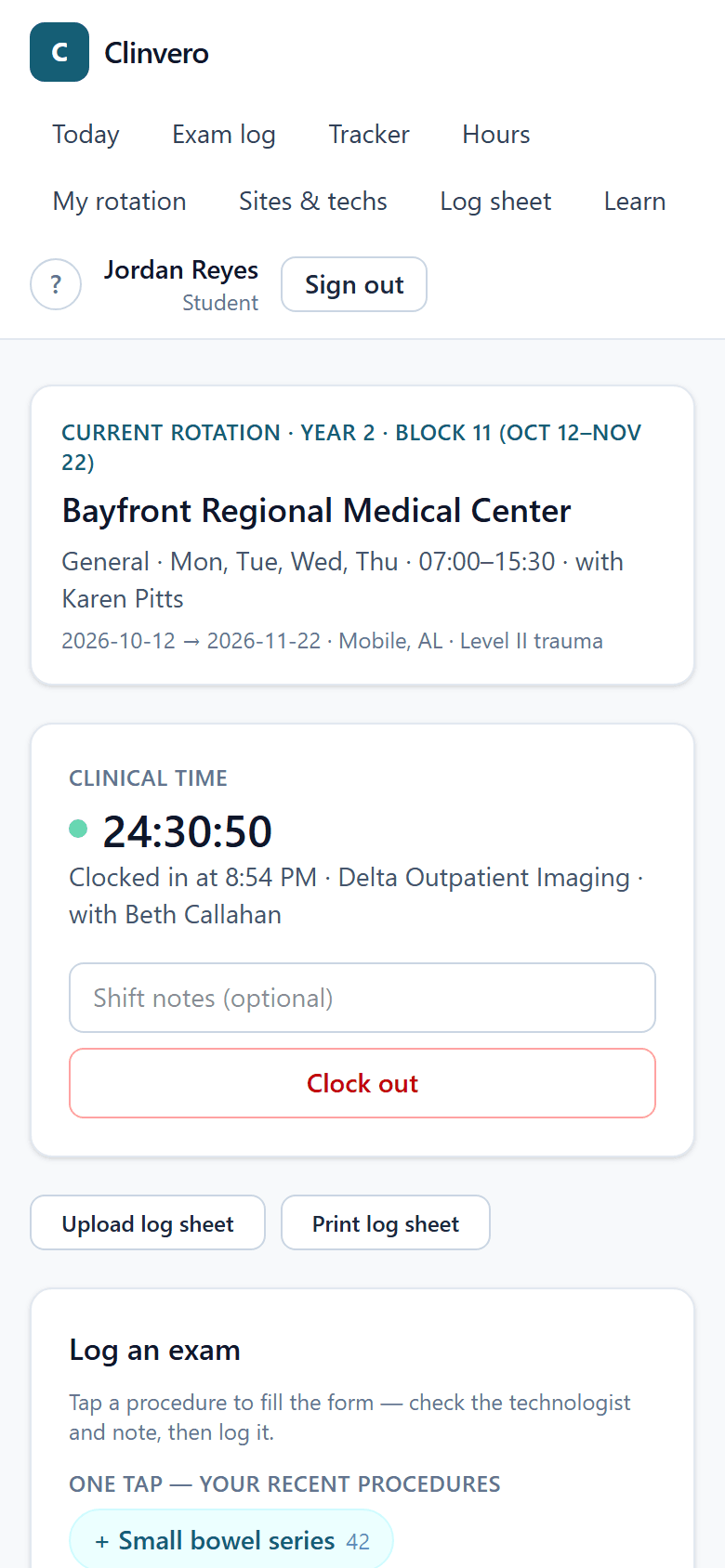
After you sign in you land on Today. That page is the one you will use most. It shows whether you are clocked in, a quick form for logging exams, what you have logged so far today, and how far along your competencies are.
If you ever get sent to a sign-in screen again, use the same email address. You do not need a new invitation.
Show me: your today page2 minGetting ready for clinicals
Getting started is a short checklist that shows what to do before your first clinical day. It sits on Today until you finish it. You do not tick the boxes yourself — each step completes when the thing is actually done.
- Accept your invitation and sign in.
- Add Clinvero to your phone's home screen. On an iPhone, open Clinvero in Safari, tap Share, then Add to Home Screen. On Android, open it in Chrome, tap the ⋮ menu, then Add to Home screen.
- Check your rotation.
- Sort out your Clinvero term, if your program is student-paid.
- Finish the orientation module under Learn.
Clock in and clock out
Tap Clock in when you arrive. Pick the site you are at and, if your program asks for it, the technologist you are working with. Both are pre-filled from your rotation schedule, so most days you just tap the button.
Tap Clock out when you leave. Your hours are counted from the time between the two. The times come from Clinvero's server, not your phone's clock.
If you forgot to clock in or out: tell your clinical instructor. You cannot edit a shift yourself, and that is on purpose — attendance is part of your program's accreditation record, so a person has to make the correction. Nothing is lost; it just gets fixed rather than rewritten.
Show me: clock in and clock out1 minLogging an exam in one tap
Every procedure you take part in gets logged, whether or not it counts toward a competency. On Today, pick the procedure — your most-used ones are right there as buttons — and say how you took part:
- Performed — you did the exam.
- Assisted — you helped, someone else did it.
- Observed — you watched.
Only performed exams count toward the number you need before you can ask for a sign-off.
Two more things the log asks for:
Direct or indirect supervision. Direct means a qualified technologist was in the room with you. Indirect means one was available and nearby, but not in the room. Your program has rules about which is allowed when; log what actually happened.
Repeat. Mark it when an image had to be taken again. A repeat is not a punishment and it is not a mark against you. Programs track repeat rates because every repeat is extra radiation dose for the patient, so the number matters for patient safety, not for grading. An honest repeat rate is more useful to your program than a clean one.
Tapping a procedure button only fills in the form. Nothing is saved until you press Log exam. If you log the wrong one, remove it from Today or the Exam log page and log it again.
Show me: log an exam2 minAsking for a competency sign-off
A procedure becomes ready to comp once you have logged the number of exams your program requires for it. You will see it marked that way on your tracker and on Today.
Tap Submit comp, confirm the details, and it goes to your program as a pending sign-off. What the evaluator sees is the procedure, the date, the patient type, the site, and anything you typed in the notes. They then pass or fail it and can add their own note. If your program grades competencies, a pass is scored on your program's rubric at the same time.
While it is pending you can withdraw it. Once it is signed, it is part of your record.
Show me: ask for a sign-off2 minReading your tracker
The tracker lists every procedure on your program's list with where you stand:
- Required exams — how many of that procedure you need to log before you can ask for a sign-off.
- How many left — what is still outstanding.
- Ready — you have met the requirement; ask for the sign-off.
- Pending — you asked, and your program has not decided yet.
- Passed — signed off and done.
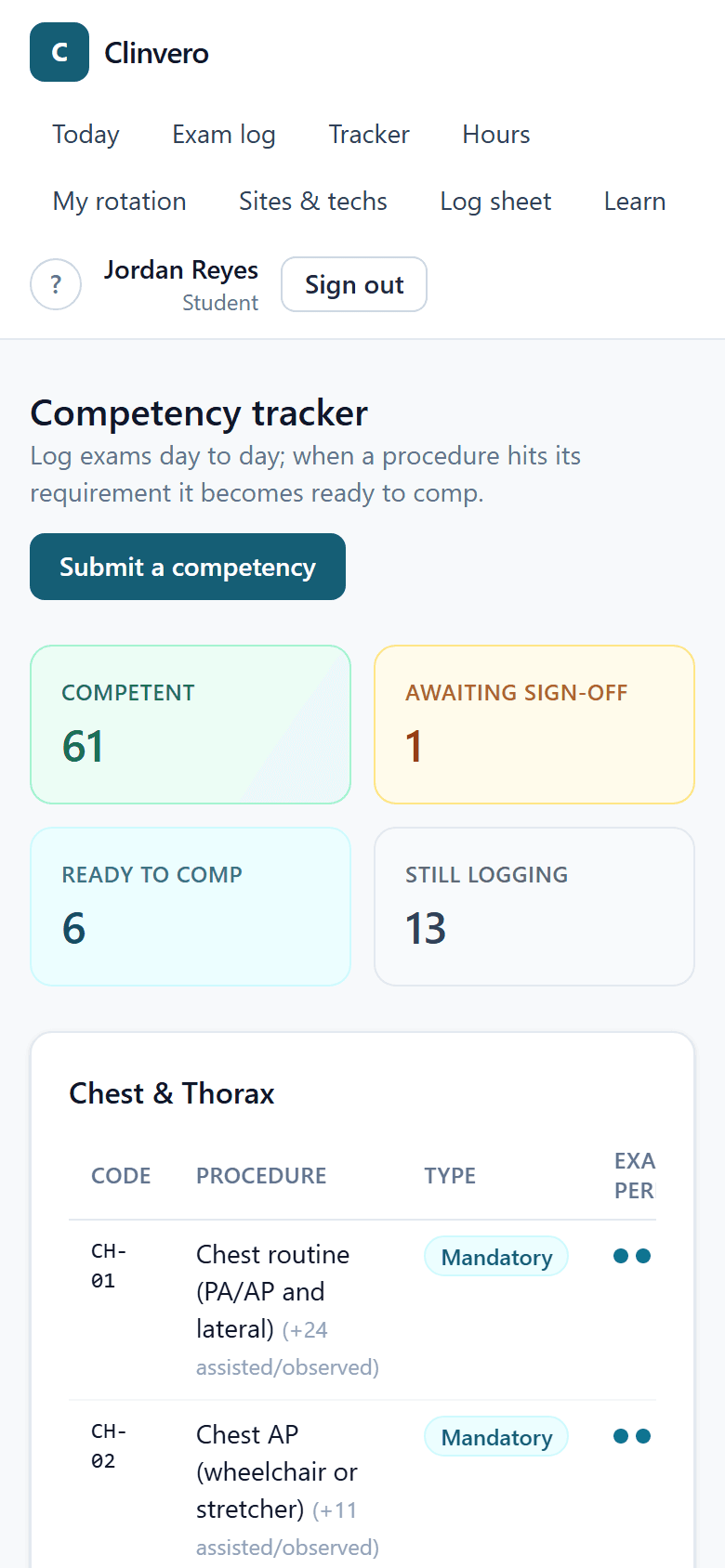
Behind pace means you are noticeably further back than the middle of your cohort — not that you have failed anything. It is an early warning so your program can help you catch up while there is still time.
Show me: read your tracker1 minYour comp grades
If your program grades competencies, each pass is scored on your program's evaluation rubric, and if your program shows grades to students, you see them:
- On your tracker, the score sits under the date of each passed procedure.
- Tap the procedure, then scroll to Competency sign-off, for the score on each criterion, any notes the evaluator left, and their overall comments.
A pass marked Below the passing score still counts as passed; your program sees it flagged so they can help with what was weak. A sign-off from before your program started grading shows No grade (before grading enabled) — that is not a zero.
If you think a grade is wrong, talk to your clinical instructor. Only program staff can correct a grade, and the original stays on record.
Your hours, your rotation, and off-schedule banners
Hours shows every completed shift, grouped by week, with your total.
My rotation shows where you are scheduled: which site, which area, which days, and which shift.
Sometimes you will see an off-schedule banner on something you logged. It means what you recorded did not match your schedule — a different site, a day you were not rostered, or a start time well outside your shift.
Nothing is blocked and nothing is deleted. Clinvero never stops you from clocking in or logging an exam. The banner only asks you to say why: you swapped days, you were pulled to another site, the schedule changed. Add the reason and it goes to your program as a normal record with an explanation attached.
Show me: add an off-schedule reason1 min Show me: check your rotation1 minPaper log sheets
Some sites do not let you have your phone out. If your program turns paper log sheets on, you will see Log sheet in the menu.
- Before the shift, open Log sheet and press Create and print a sheet. It is pre-filled with your current rotation.
- During the shift, write each exam on the sheet.
- Afterwards, take a photo of the sheet and upload it from Upload log sheet on Today, or scan the QR code printed on it.
- Clinvero reads the rows. Check every row on the review screen — anything it was unsure about is flagged for you to fix.
- Press Commit when every row is checked. Only then are the exams added to your record.
Nothing on a sheet counts until you have checked it. The photo is kept with the exams so your program can see where they came from.
Walkthroughs and orientation
A walkthrough is a short tour that highlights one part of the page at a time and explains it. It only points — it never changes anything. Look for Show me in this guide, or open the ? at the top of any page and pick one under Show me how.
Learn in the menu has your orientation module: short readings, walkthroughs and a couple of quick questions, in order. Your program may also assign you other modules there, sometimes with a due date. Your program can see when you finish.
Paying your fee
Some programs ask students to pay for Clinvero; others pay for it themselves. If yours is student-paid, you pay once for a term that covers your whole enrollment — the amount and the term length are on Profile → Billing.
- Payment never blocks you from joining. It is a step after you create your account, with Pay later if you are not ready.
- There is a grace period after you join. A banner on Today shows the due date. It turns red in the last three days.
- After the due date you can always still clock in and log exams. Most programs change nothing else — the banner just stays. Some programs pause your tracker, history and sign-off requests until you pay. The banner tells you which applies to you.
- If your term runs out while you are still enrolled — because you repeated a semester or a year — you buy one more term. If you finish on time you are never asked again.
- If paying is a problem, talk to your program. They can waive it, or record a payment made another way, like financial aid.
Payment is handled by Stripe and your receipt comes from Stripe — it is also linked on Profile → Billing. Clinvero never sees or stores your card details.
Who to contact
Questions about your schedule, a shift, a sign-off or the fee go to your program: your clinical coordinator or program director.
Questions about Clinvero itself — something not working, or something this guide does not answer — go through Ask a question in the ? menu.